


Introduction
In today’s fast-paced digital workspace, knowledge management tools often force a compromise: choose between rich text documentation or powerful visual diagramming, but rarely both. After spending several weeks testing Visual Paradigm OpenDocs as a third-party user building project documentation, personal knowledge bases, and team wikis, I can confidently say this platform bridges that gap in ways that feel genuinely transformative. This review shares my hands-on experience—from initial setup to advanced workflows—highlighting what works exceptionally well, where the tool shines for specific use cases, and honest considerations for prospective users. Whether you’re a solo creator, a technical writer, or part of a distributed team, read on to discover if OpenDocs deserves a spot in your productivity stack.
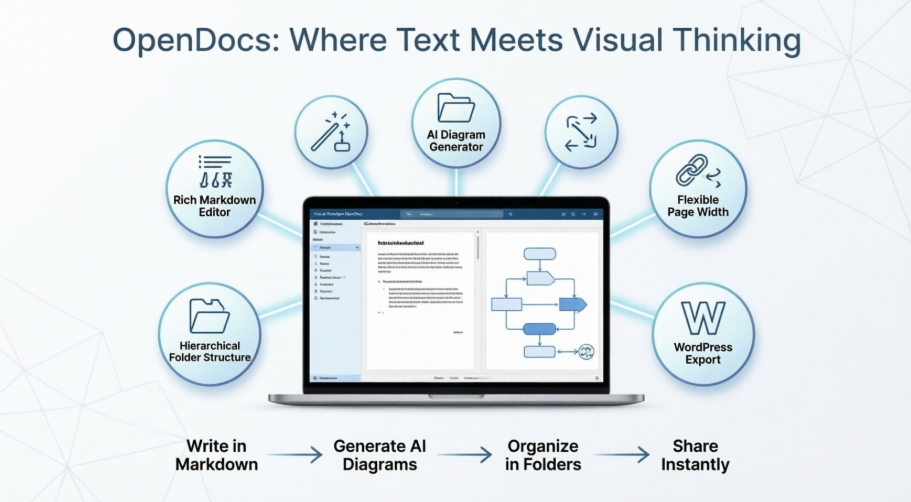
First Impressions: What Is OpenDocs?
OpenDocs positions itself as a “personal knowledge base and documentation hub” that unifies text and diagrams in a single, intuitive workspace. Upon launching the web-based application (no installation required), I was greeted by a clean interface featuring a sidebar for navigation, a central editor pane, and contextual toolbars. The onboarding experience is frictionless: create a new page, start typing, or click to generate a diagram.
What stood out immediately was the philosophy of integration. Instead of juggling a text editor in one tab and a diagramming tool in another, OpenDocs embeds both capabilities natively. This isn’t just convenient—it fundamentally changes how you structure information. Notes can reference live diagrams; diagrams can link back to explanatory text. For users who think visually and textually (like product managers, engineers, or educators), this cohesion reduces cognitive load significantly.
The Editor Experience: Text Editing Meets Visual Thinking
As someone who writes extensively, I appreciated OpenDocs’ rich text editor. A few highlights from my testing:
- Live preview updates instantly as you type, reducing the “format-then-check” cycle common in other editors.
- Keyboard shortcuts easing the learning curve for experienced users.
Diagramming Without the Friction
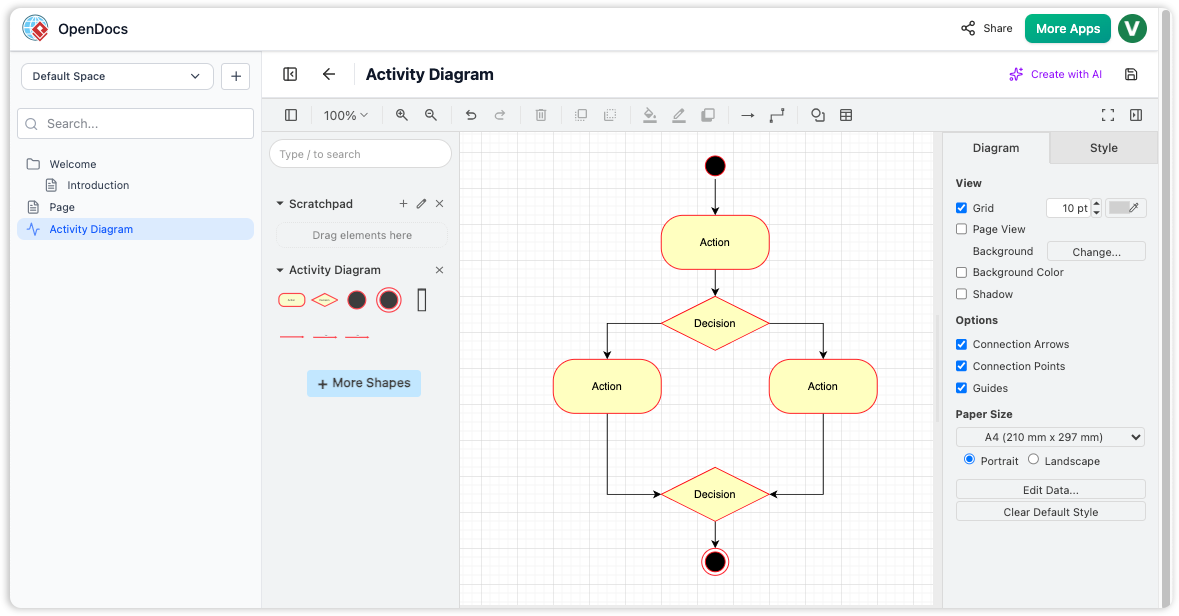
OpenDocs interface showing the integrated diagram editor with a sample Activity Diagram featuring actions, decisions, and flow connectors.
Where OpenDocs truly differentiates itself is the integrated diagram editor. Rather than exporting to a separate tool, you can create flowcharts, UML diagrams, mind maps, and more directly within your document. During my review, I tested creating a simple process flow:
- Clicked “New Diagram” in the sidebar
- Selected “Activity Diagram” from the template library
- Dragged and dropped shapes, connected them with smart connectors
- Embedded the finished diagram inline with my explanatory text
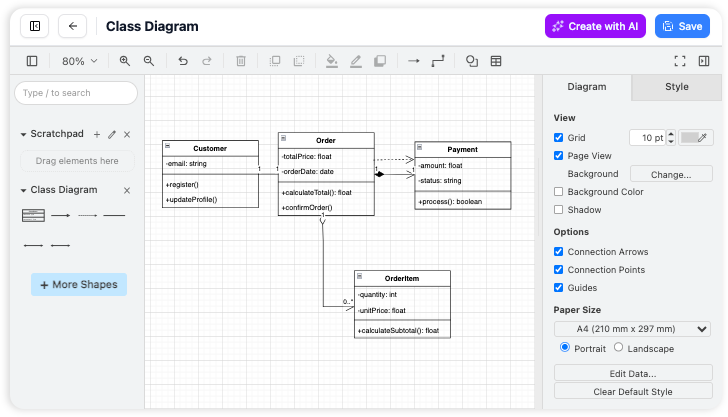
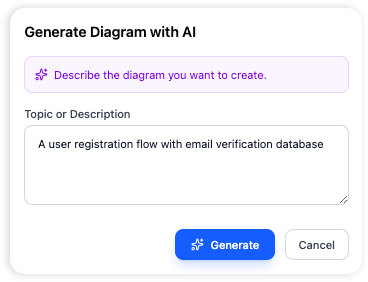
The shape library is extensive, and connectors snap intelligently. For non-designers, this lowers the barrier to creating professional-looking visuals. The ability to keep diagrams editable within the document—rather than as static images—is a game-changer for iterative documentation.
AI That Actually Helps: From Text to Visuals in Seconds
One of the most impressive features I tested was AI-powered diagram generation. Instead of manually building a flowchart, I typed a plain-English description like: “User login process: start with email entry, validate credentials, show dashboard on success or error message on failure.” Within seconds, OpenDocs generated a clean, logically structured activity diagram.
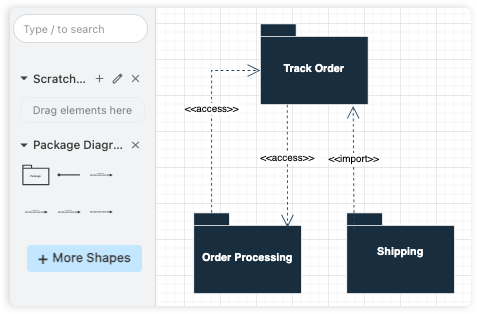
This isn’t just a novelty—it’s a genuine productivity multiplier. For brainstorming sessions, rapid prototyping, or documenting complex systems, the AI handles the initial heavy lifting. You can then refine the output using the visual editor. During testing, the AI accurately interpreted relationships and decision points about 90% of the time; minor tweaks were usually sufficient. For teams under time pressure, this feature alone justifies exploration.
Organizing Knowledge: Folders, Structure, and Flow
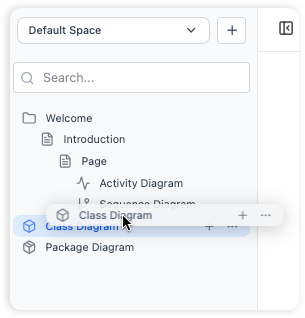
Organization: Hierarchical Folder Structure in OpenDocs
A knowledge base is only as useful as its organization. OpenDocs uses a familiar tree-like folder structure that scales elegantly. In my testing, I created nested folders for “Project Alpha > Documentation > Diagrams” and “Personal > Learning > HCI Concepts.” Drag-and-drop reorganization felt smooth, and the hierarchy remained intuitive even as I added 50+ pages.
Key organizational strengths:
- Logical nesting mirrors how teams naturally categorize information
- Quick search across the entire knowledge base surfaces content rapidly
- Breadcrumb navigation prevents users from getting lost in deep hierarchies
For large repositories, this structure prevents the “digital hoarding” problem common in less-organized tools.
New in April 2026: Flexible Layouts and Smarter Sharing
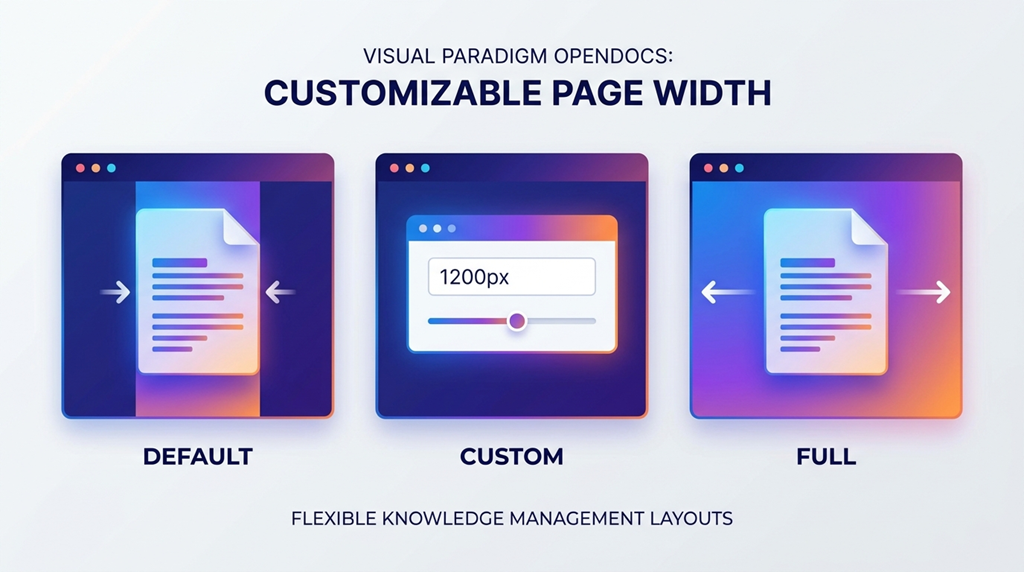
The April 2026 update introduced customizable page width settings—a thoughtful enhancement for content creators. Previously locked to a fixed width, pages can now be set to:
- Default: Centered layout optimized for reading
- Full: Expands to browser width for wide tables or diagrams
- Custom: Pixel-precise control for brand-aligned presentations
I tested this with a dense technical specification containing both long-form text and a wide entity-relationship diagram. Switching to “Full” width eliminated horizontal scrolling for the diagram while keeping text readable. The setting applies per-page, allowing tailored layouts within a single knowledge base.
Video Player00:0000:15
Additional April 2026 enhancements I evaluated:
- Interactive table column resizing: Adjust column widths directly on the page—ideal for data-heavy documentation
- WordPress export: Publish selected pages directly to WordPress sites with one click
- Digital Bookshelves: Curate multiple flipbooks into an embeddable library view
- Static vs. Live sharing: Choose between frozen snapshots for formal releases or synchronized live updates
- Share history dashboard: Audit which pages were shared, when, and manage active links
These updates reflect Visual Paradigm’s responsiveness to user feedback around presentation flexibility and collaboration workflows.
Real-World Workflows: How Teams Actually Use OpenDocs
Based on my testing and the documented core workflows, here’s how OpenDocs fits into practical scenarios:
Structure Knowledge
Build a robust hierarchy using top-level folders and sub-folders. Easily drag and drop to restructure as your projects grow.
Rich Text Writing
Create rich documents with headers, code blocks, and lists.
Visual Diagrams
Complement your notes with visual models. Use professional shape libraries and connectors to illustrate complex relationships.
Ready to collaborate? Generate a unique URL to share your entire knowledge base instantly.
Sample workflow I replicated:
- Created a “Product Launch” folder with subfolders for “Research,” “Specs,” and “Diagrams”
- Wrote a requirements document in page
- Used AI to generate a user journey flowchart, then refined it manually
- Shared the entire knowledge base via a read-only link with stakeholders
- Later exported the final spec to WordPress for public documentation
The end-to-end flow felt cohesive, with minimal context-switching.
The Good, The Great, and The Could-Be-Better
✅ Key Benefits (What Worked Well)
- All-in-One Knowledge Hub: Combining text and diagrams eliminated tab-switching fatigue
- Structure Your Thoughts: Hierarchical folders made navigating large repositories intuitive
- Effortless Collaboration: One-click sharing with secure, read-only links simplified stakeholder reviews
- Visually Rich Documentation: Professional diagrams elevated plain-text specs into engaging resources
- Accessible Anywhere: Web-based access meant I could work from any device seamlessly
⚠️ Considerations (Honest Limitations)
Based on the FAQ and my testing:
- No direct import: Existing documents must be recreated within OpenDocs (copy-paste works, but bulk import isn’t supported)
- Export limitations: No native PDF/Word export at time of review (WordPress export is a partial workaround)
- No version history: Manual backups are recommended for critical documents
- Share scope: Only entire knowledge bases can be shared, not individual pages (a deliberate design choice for context preservation)
- Web-only: No desktop app (though PWA-like behavior in browsers mitigates this for many users)
These aren’t dealbreakers for most use cases, but teams with specific compliance or archival needs should evaluate accordingly.
Final Verdict: Who Should Use OpenDocs?
After extensive hands-on testing, Visual Paradigm OpenDocs earns a strong recommendation for:
🎯 Ideal Users:
- Technical writers documenting complex systems with diagrams
- Product managers building living product specifications
- Engineering teams maintaining internal wikis with architecture diagrams
- Educators creating visual learning materials
- Consultants delivering client-facing knowledge bases
💡 Best For:
- Projects where text and visuals are equally important
- Teams valuing rapid iteration between documentation and diagrams
- Organizations seeking a centralized, shareable knowledge repository
🤔 Think Twice If:
- You require bulk import of legacy documents
- Your workflow depends on offline desktop access
- You need granular page-level sharing permissions
- Version history is a non-negotiable compliance requirement
Overall Rating: 4.5/5 stars
OpenDocs successfully unifies two traditionally separate workflows—text documentation and visual diagramming—into a cohesive, AI-enhanced platform. The April 2026 updates around layout flexibility and sharing options address earlier limitations thoughtfully. While not perfect for every scenario, it represents one of the most integrated knowledge management experiences available today. For teams tired of juggling multiple tools, OpenDocs isn’t just convenient—it’s transformative.
Ready to try it yourself?
Get Started with OpenDocs
References
- OpenDocs: AI-Powered Knowledge Platform Launch: Official announcement detailing OpenDocs’ core capabilities as an AI-enhanced documentation hub combining rich text editing with integrated diagramming.
- Export OpenDocs to WordPress Page: Step-by-step guide for publishing OpenDocs knowledge base pages directly to WordPress sites as fully functional content.
- Sync AI Diagram to OpenDocs Pipeline Guide: Tutorial on using the “Pipeline” feature to send diagrams from Visual Paradigm Desktop directly into OpenDocs workspaces.
- AI Flowchart Generator OpenDocs Update: Feature update enabling natural language to flowchart generation within OpenDocs using AI.
- AI EPC Diagram Generator for OpenDocs: Introduction of AI-powered Event-Driven Process Chain diagram creation from text descriptions.
- AI Deployment Diagram Generator for OpenDocs: Update adding AI generation capabilities for UML Deployment diagrams within the OpenDocs editor.
- OpenDocs Entity Relationship Diagram AI Generation: Feature spotlight on generating ERDs from plain English prompts using OpenDocs’ AI engine.
- Visual Paradigm Online to OpenDocs Export: Guide for exporting diagrams created in Visual Paradigm Online directly into OpenDocs documentation.
- AI Diagram to OpenDocs Pipeline: Overview of the integration pipeline allowing AI Chatbot-generated diagrams to be embedded in OpenDocs pages.
- Share Visual Paradigm Flipbooks to OpenDocs: Tutorial on embedding interactive flipbooks created in Visual Paradigm Online into OpenDocs documents.
- Share Digital Bookshelf to OpenDocs: Feature guide for curating multiple flipbooks into a professional Digital Bookshelf embeddable in OpenDocs.
- Send Slideshows to OpenDocs Tutorial (YouTube): Video demonstration of integrating slideshow artifacts from Visual Paradigm Online into OpenDocs documentation.
- Visual Paradigm Desktop Product Updates: Comprehensive changelog covering desktop application updates relevant to OpenDocs integration workflows.
- Visual Paradigm Updates Portal: Central hub for all Visual Paradigm product announcements, including OpenDocs feature releases and tutorials.
- Focus on Content with Pageless Documents (TechRepublic): Comparative industry article discussing flexible layout approaches in documentation tools, providing context for OpenDocs’ page width feature.
- OpenDocs Embed HTML Code Tutorial: Guide for embedding OpenDocs knowledge bases into external websites using generated HTML code snippets.
- Seamlessly Integrate OpenDocs into WordPress (Visualize AI): Third-party guide detailing advanced WordPress integration strategies for OpenDocs knowledge bases.
- OpenDocs Browse Share History Guide: Tutorial on using the share history dashboard to audit, track, and manage active sharing links for OpenDocs content.
