


Welcome to AI Flipbook Maker Lite, a powerful, user-friendly tool powered by Visual Paradigm’s AI engine. Whether you are writing children’s stories, educational booklets, or personal tales, this guide walks you through every screen and feature. You can go from a simple idea to a fully polished, shareable flipbook in minutes—no design or coding skills required.
🚀 Step 1: Getting Started – My Books Sidebar
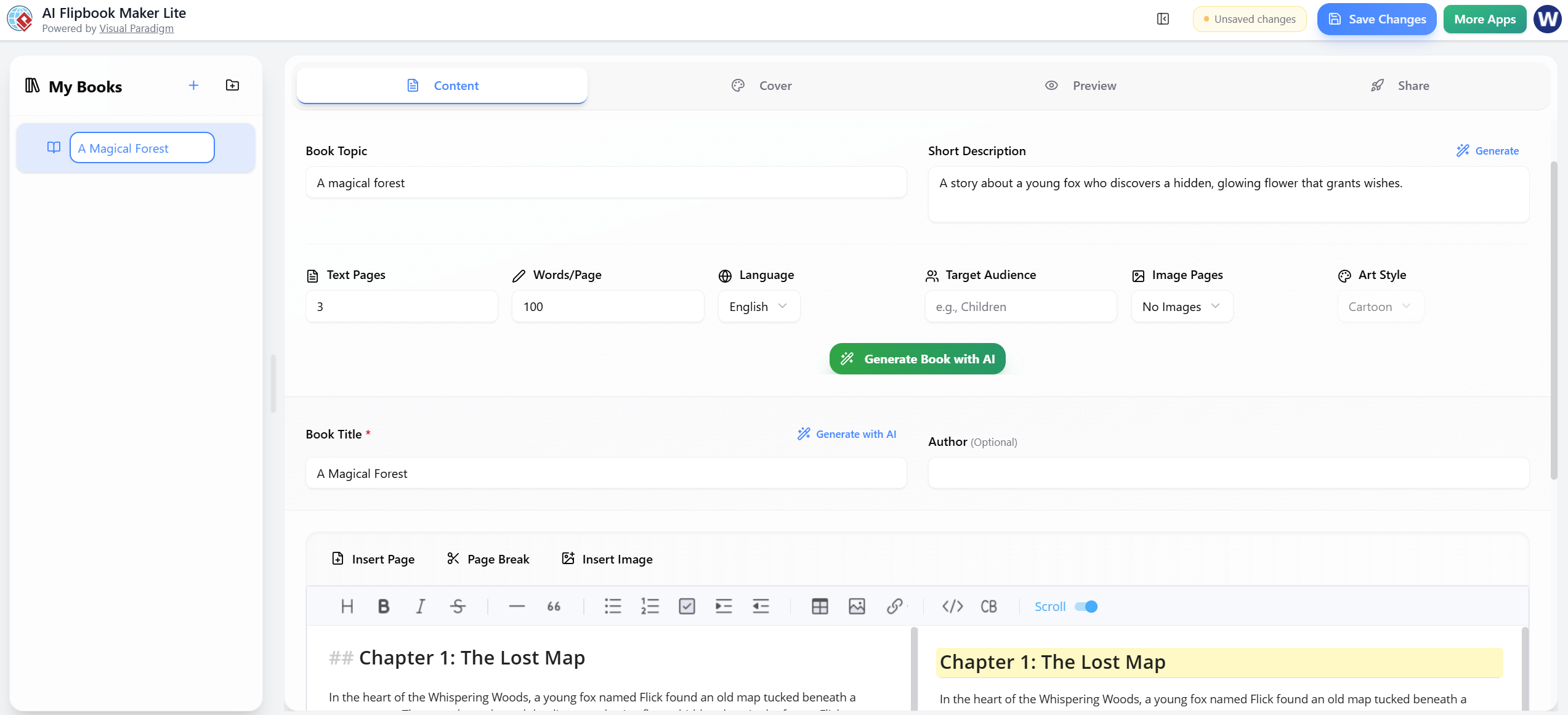
Before creating anything, you need to start your project. The interface is designed to be intuitive.
-
The Left Panel: This area always displays “My Books”.
-
Creating a New Book: Click the + icon to start a fresh project.
-
Opening an Existing Book: If you have previous work, select it (like the example “A Magical Forest”). The currently selected book will appear highlighted in blue.
✍️ Step 2: Content Tab – Set Up & Generate the Story
This is your main workspace. It is the default tab (indicated by a blue underline). Here, you define the story and let the AI do the heavy lifting.
A. Top Section: Book Setup
-
Book Topic: Type a short topic (e.g., “A magical forest”).
-
Short Description: Describe the plot (e.g., “A story about a young fox who discovers a hidden, glowing flower that grants wishes.”).
-
Tip: Click the ✨ Generate button next to the description if you want the AI to expand on your idea.
-
-
Configure Parameters:
-
Text Pages: Number of text pages (e.g., 3).
-
Words/Page: Word count per page (e.g., 100).
-
Language: Select your language (e.g., English).
-
Target Audience: Who is this for? (e.g., Children).
-
Image Pages: Choose “No Images” or specify a number.
-
Art Style: Select a style (e.g., Cartoon).
-
-
Generate: Click the big green Generate Book with AI button.
-
Result: The AI creates chapters, writes the text, and generates images if requested.
-
B. Book Title & Author
-
Book Title: Auto-filled based on your topic. Click ✨ Generate with AI if you want a new title suggestion.
-
Author (Optional): Leave blank or type your name.
C. Editor Area
At the bottom, you have full control over the content.
-
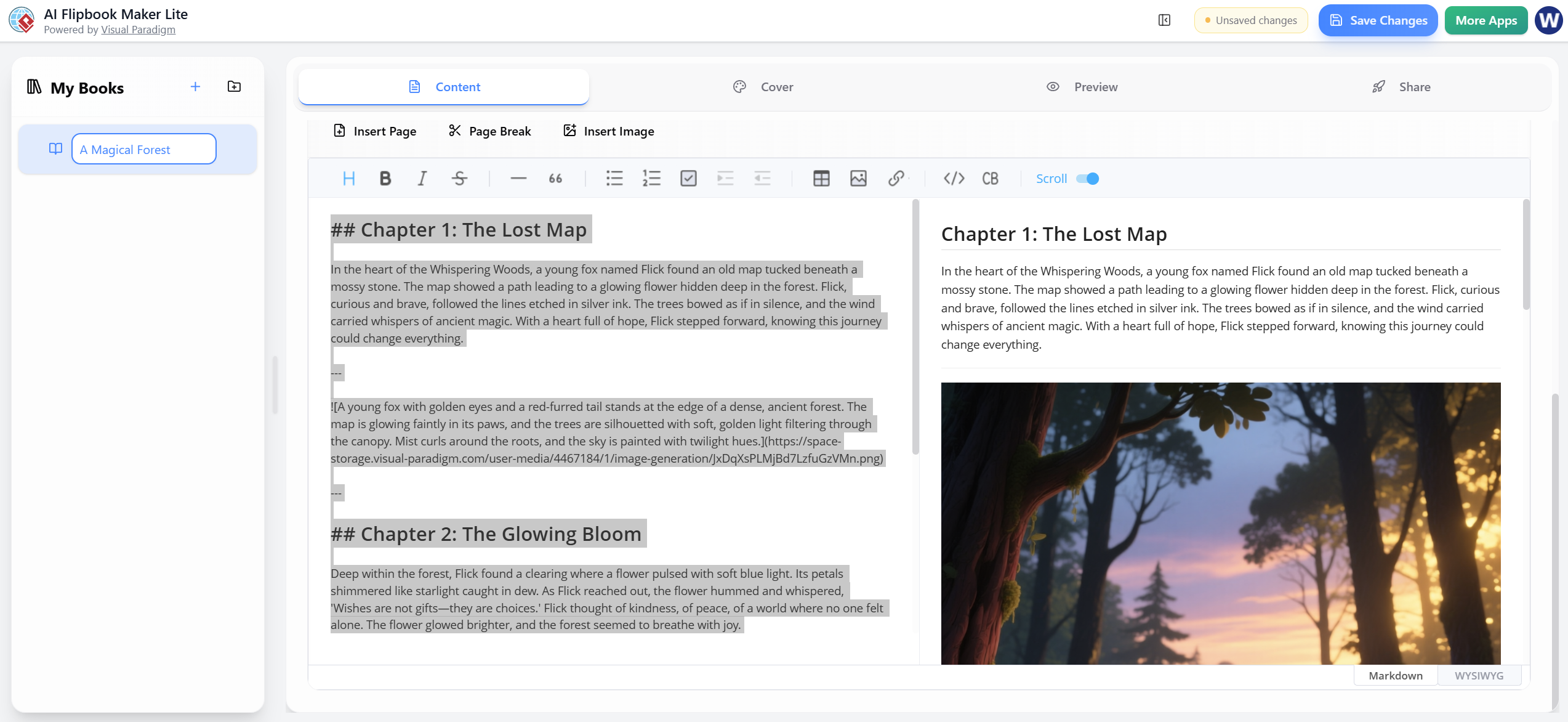
Toolbar: Insert Page, Page Break, Insert Image.
-
Formatting Bar: H1 headers, Bold, Italic, lists, etc.
-
Toggle Mode: Switch between Markdown (left pane) and WYSIWYG (right pane/live preview) at the bottom right.
-
Example Content:
## Chapter 1: The Lost Mapfollowed by story text and a generated forest image. -
Grey highlighted blocks indicate AI-generated sections which you can edit directly.
-
💡 Pro Tip: Click Save Changes (top right) frequently. A yellow badge appears when you have pending edits.
🎨 Step 3: Cover Tab – Create the Book Cover
Switch to the Cover tab to design how your book looks before opening.
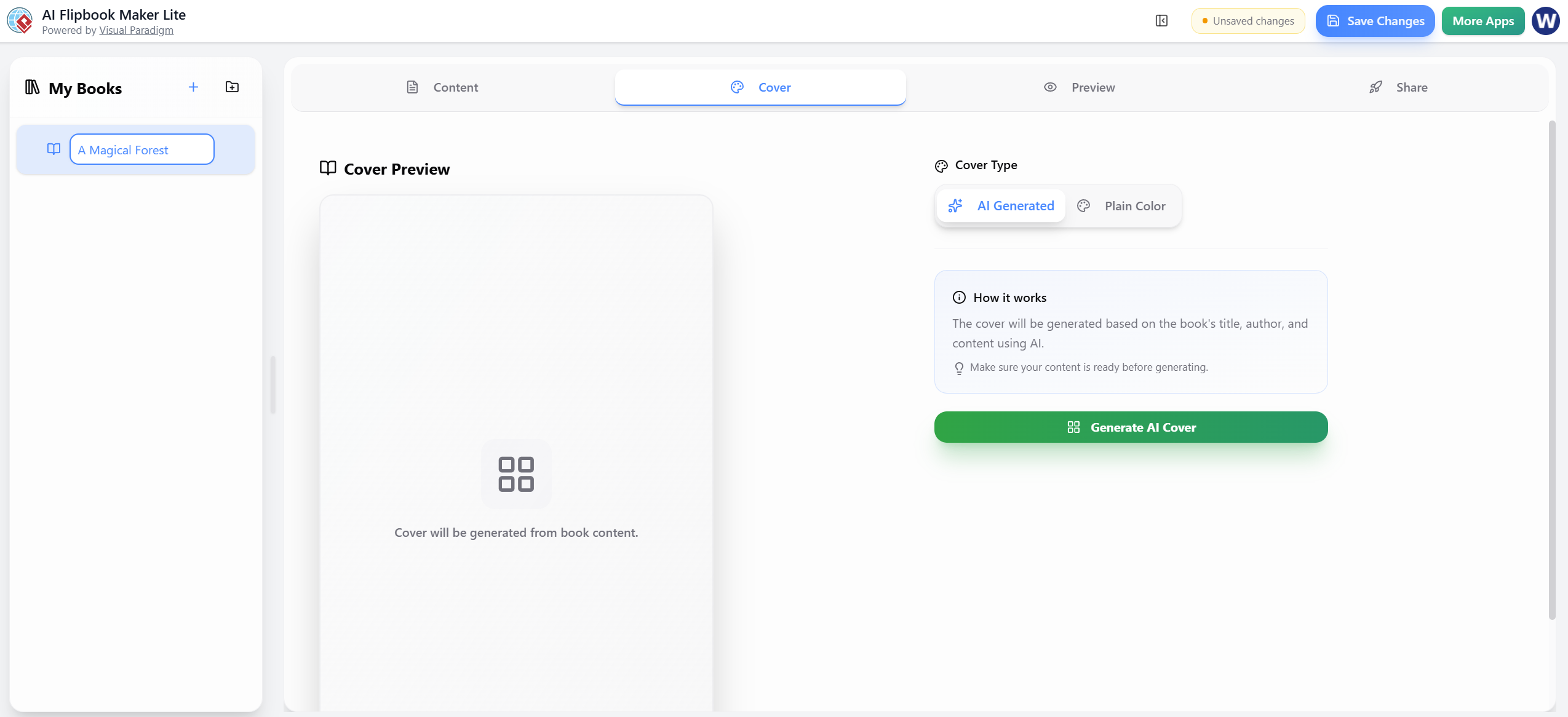
You have two options for your cover:
Option 1: AI Generated (Recommended)
Click the big green Generate AI Cover button.
-
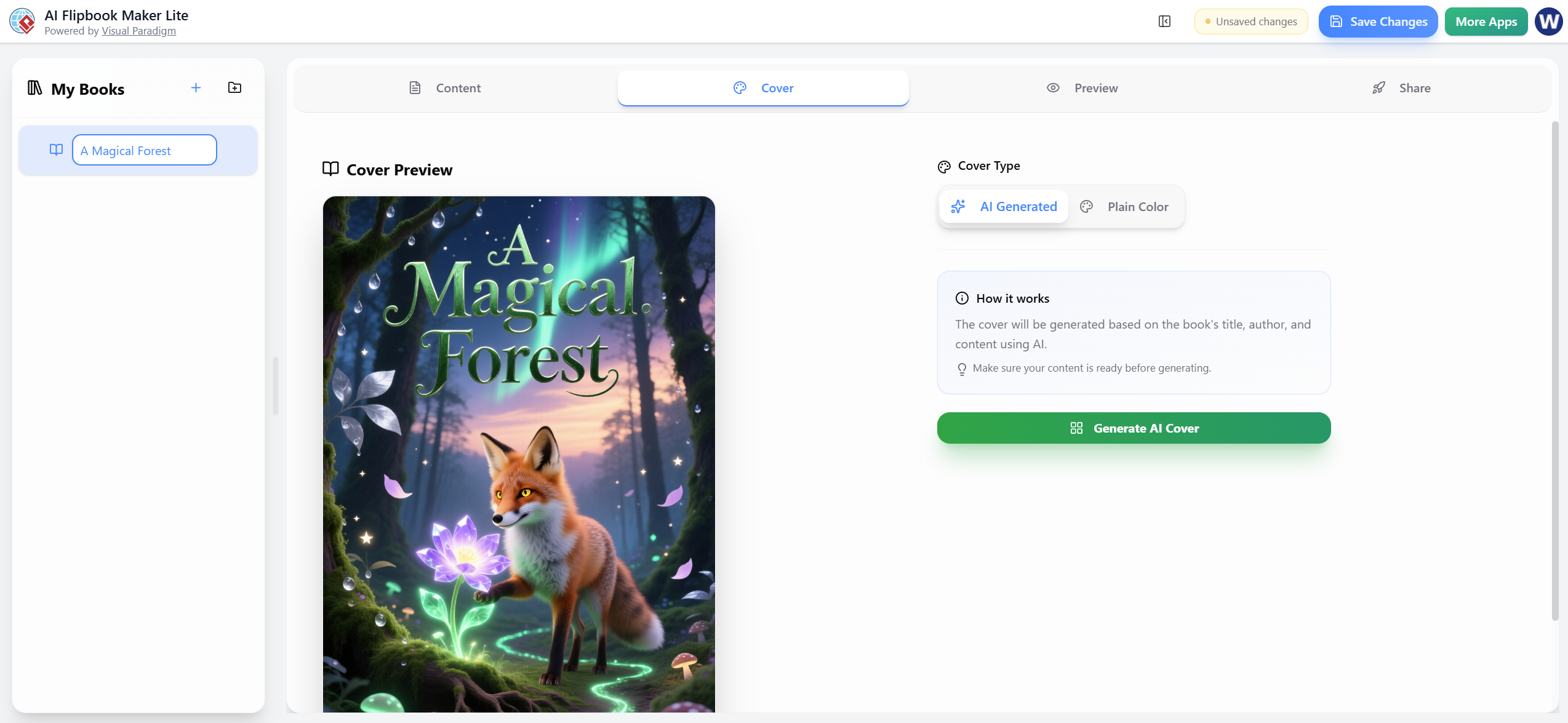
The app analyzes your book title and content to create a full-color illustrated cover.
-
Example Output: An illustration of a fox, a glowing flower, a forest, and an aurora sky with the title “A Magical Forest” in an elegant font.
Option 2: Plain Color (Simple Fallback)
If you prefer a minimalist look:
-
Choose a background color (e.g., dark teal
#2c3e50). -
Choose text color (e.g., light gray
#ecf0f1). -
The title appears centered on a solid background.
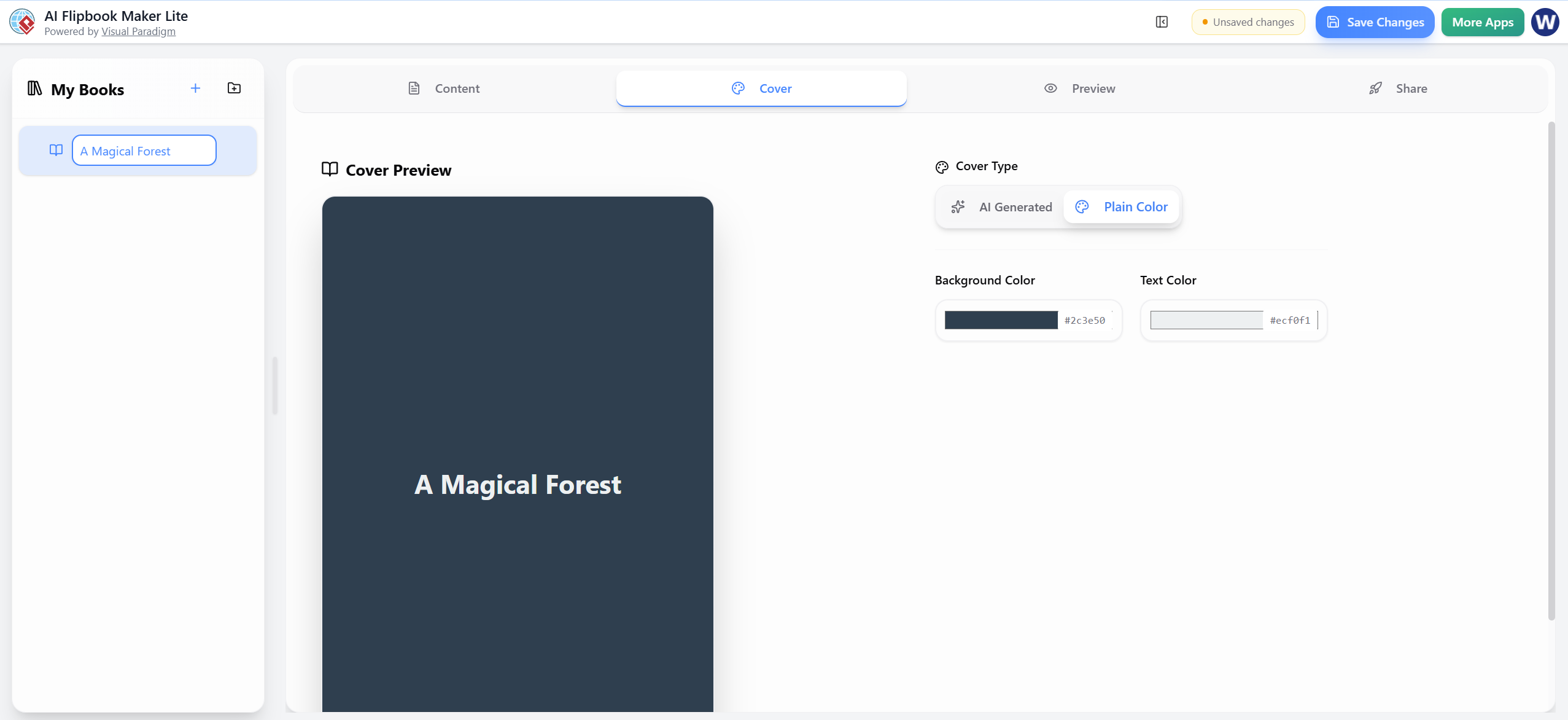
Preview Pane: Shows the live cover instantly.
-
Note: Ensure you finished the Content tab first; the message “Cover will be generated from book content” confirms this requirement.
👁️ Step 4: Preview Tab – See the Flipbook
Switch to the Preview tab to see your creation come to life.
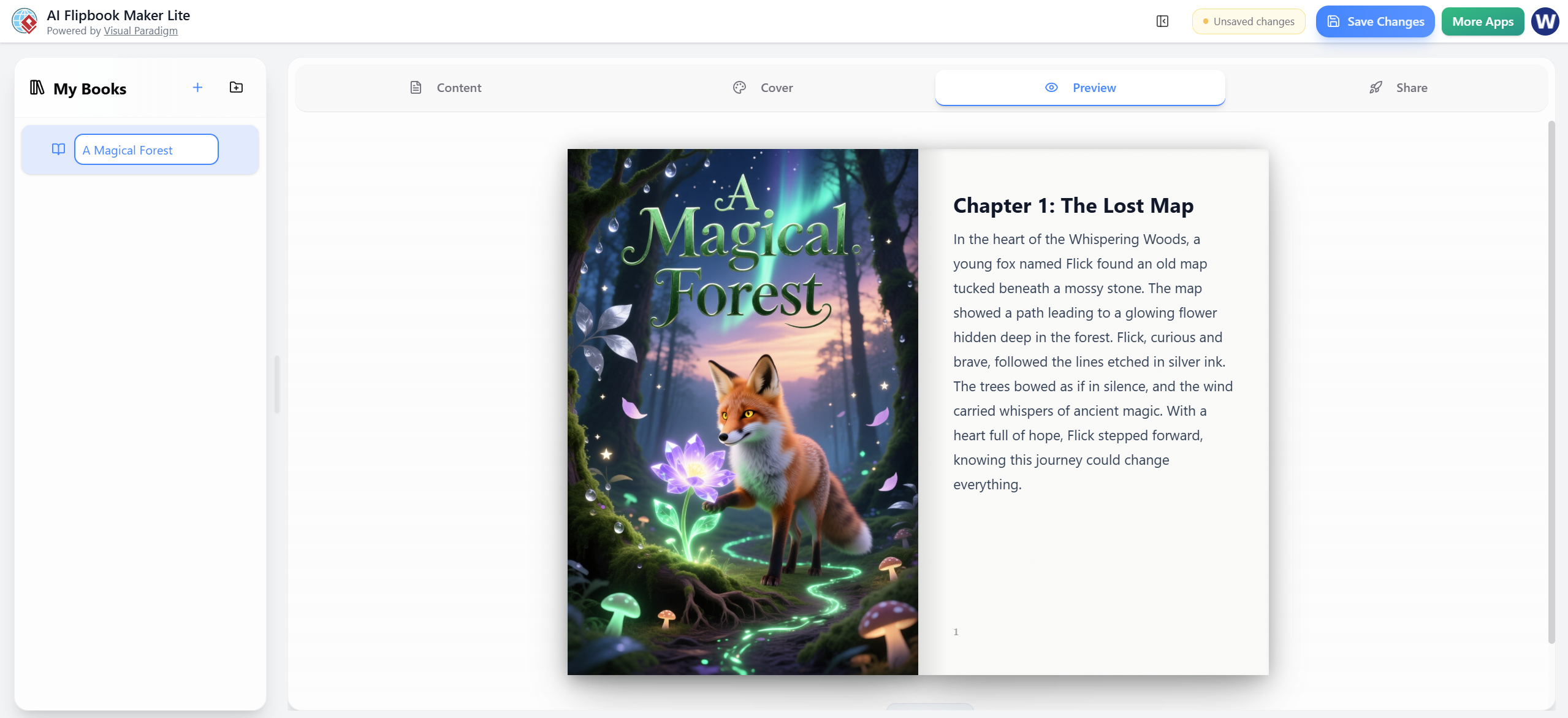
-
Left Side: Displays the full cover exactly as generated.
-
Right Side: Shows Page 1 (Chapter 1 text) with the page number “1” at the bottom.
-
Experience: This simulates the real flipbook experience side-by-side.
-
Navigation: Use scroll bars or page arrows (standard in this mode) to flip through all pages.
🌍 Step 5: Share Tab – Publish & Distribute
Once satisfied, switch to the Share tab to publish your work to the world.
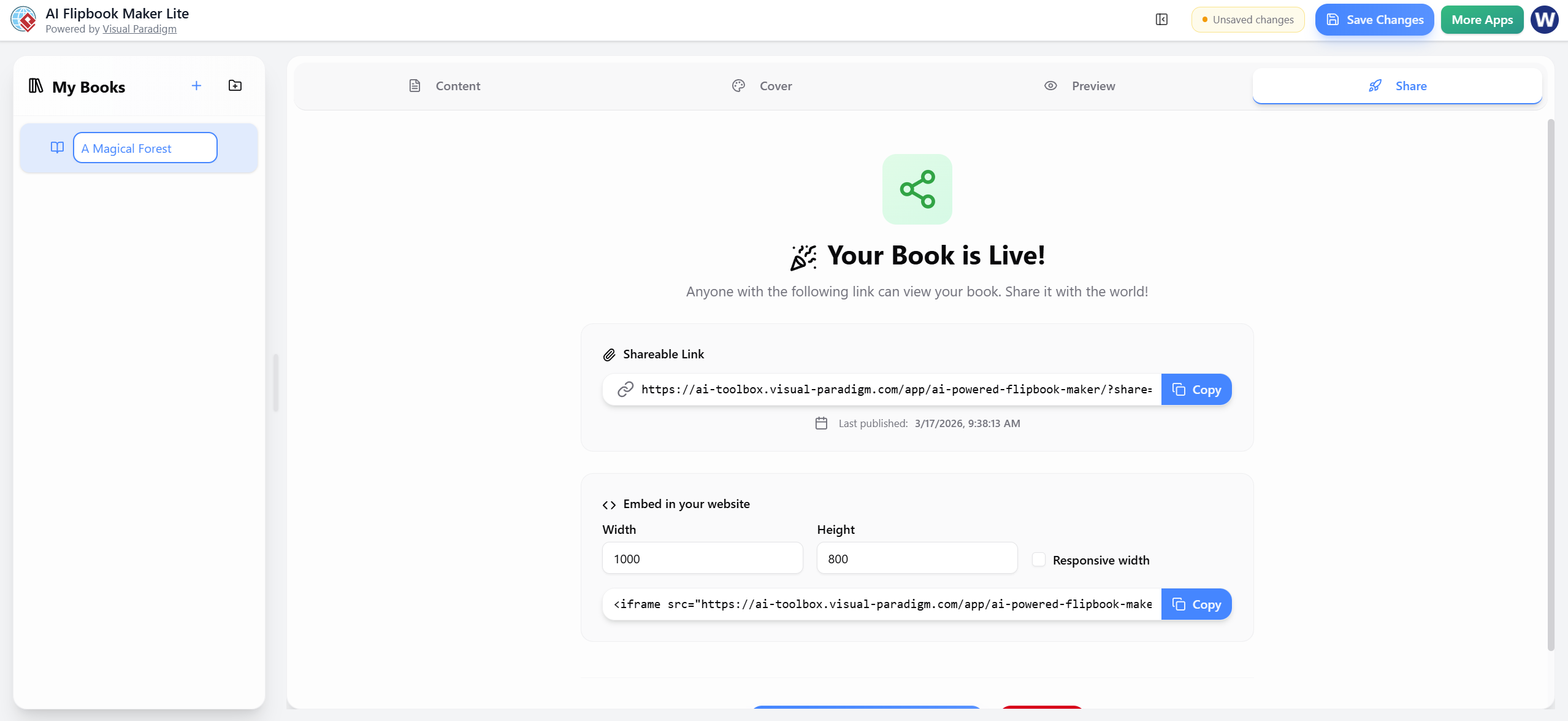
What You Will See:
-
Status: “Your Book is Live!” with a green share icon.
-
Shareable Link:
-
Example:
https://ai-toolbox.visual-paradigm.com/app/ai-powered-flipbook-maker/?share=... -
Click the Copy button to share via email or social media.
-
-
Last Published: Timestamp (e.g., 3/17/2026, 9:38:13 AM).
Embed in Website:
Want to put it on your blog or site?
-
Width: Default 1000px (adjustable).
-
Height: Default 800px (adjustable).
-
Responsive Width: Check the box to fit mobile screens.
-
Embed Code: Copy the ready-to-use
<iframe>code.
Top-Right Actions:
-
Save Changes: Blue button to secure your work.
-
More Apps: Green button to explore other Visual Paradigm tools.
📝 Quick Workflow Summary
Follow this recommended order for the best results:
-
My Books: Select or create a book.
-
Content Tab: Fill topic/description/settings → Generate Book with AI → Edit text/images.
-
Cover Tab: Generate AI Cover.
-
Preview Tab: Check appearance.
-
Share Tab: Copy link or embed code → Publish!
💡 Useful Tips
-
Order Matters: Finish the Content tab before generating the cover.
-
Auto-Save: The app auto-saves drafts, but always click Save Changes before switching tabs or closing.
-
Images: Generated image URLs (e.g.,
storage.visual-paradigm.com/...) are automatically inserted. You can also manually insert images or page breaks anytime. -
Editing Modes: Toggle between Markdown and WYSIWYG depending on your comfort level.
📚 Reference List
- Visual Paradigm Flipbook Maker – Create Interactive Digital Flipbooks: This online tool allows users to convert static documents into engaging flipbooks featuring realistic page-flipping effects.
- AI Flipbook Generator: Create & Publish Digital Books Instantly: This tool enables creators to write, design, and publish professional digital flipbooks and storybooks directly from a simple text prompt.
- Lumina AI Slideshow Maker: Create Stunning Presentations with AI: Users can leverage artificial intelligence to generate high-quality slides from simple text input, saving time while enhancing visual creativity.
- AI Animated Presentation Studio: Create Dynamic, Animated Slides with Ease: An AI-powered web studio that combines traditional slide editing with generative AI to automate the writing and design of animated presentations.
- Self-Hosted Flipbook Slideshow: Transform Documents into Interactive Presentations: A technical guide for converting PDFs into interactive flipbook slideshows with full control over hosting and customization.
- Markdown Presentation Maker: Turn Code into Beautiful Slides: This tool transforms Markdown files into polished, animated presentations with syntax highlighting, ideal for technical and developer-focused content.
- Lumina AI: Generate AI-Powered Video Slideshows Instantly: A release update describing a tool that creates dynamic video presentations from text, perfect for rapid marketing content creation and storytelling.
- Flipbook Maker: A Game-Changer for Interactive Content: This article explores how flipbook technology transforms static brochures and reports into immersive digital experiences.
- Creating Animation Flipbooks with AniFuzion & Fliplify: A tutorial focused on combining animation software with flipbook makers to produce visually rich, moving digital publications.
- Why Visual Paradigm Online’s Flipbook Maker Stands Out: An analysis of the unique features that make this flipbook maker suitable for professional KPI presentations and interactive reports.
 curtis
- AI, Flipbook Maker
- March 17, 2026
