


For IT Development Teams Seeking Smarter Documentation & Collaboration
What is Visual Paradigm?
Visual Paradigm is an all-in-one visual modeling and design platform that helps IT development teams, business analysts, and project managers create professional diagrams, documentation, and knowledge bases—all powered by AI assistance.
Think of it as your team’s visual co-pilot: whether you’re designing software architecture, mapping business processes, or creating project documentation, Visual Paradigm provides the tools to turn ideas into clear, professional visuals—fast.
Key Benefits for Beginners:
- ✅ No design skills required – AI helps generate diagrams from text prompts
- ✅ 150+ diagram types – UML, BPMN, flowcharts, ERD, ArchiMate, and more
- ✅ Cloud + Desktop flexibility – Work online or offline, your choice
- ✅ Real-time collaboration – Share, comment, and iterate with your team
- ✅ AI-powered assistance – Generate, edit, and query diagrams conversationally
The Visual Paradigm Ecosystem: Core Components
Visual Paradigm isn’t just one tool—it’s an interconnected ecosystem designed to support your entire development lifecycle:
🖥️ Visual Paradigm Desktop
Professional-grade modeling for complex projects
- Full-featured desktop application for Windows, macOS, Linux
- Advanced modeling capabilities: code engineering, database reversal, model-driven development
- Supports enterprise standards: TOGAF®, ArchiMate®, DoDAF, SysML
- Ideal for: Enterprise architects, senior developers, technical leads
☁️ Visual Paradigm Online
Browser-based diagramming for agile teams
- Access from any device with a web browser
- Collaborative editing with real-time sync
- Over 150 diagram types with drag-and-drop simplicity
- Ideal for: Remote teams, quick prototyping, stakeholder reviews
🤖 Visual Paradigm AI Chatbot
Your conversational diagramming assistant
- Type plain English: “Create a sequence diagram for user login”
- AI generates professional diagrams in seconds [[10]]
- Refine with commands: “Add payment gateway”, “Rename Customer to Buyer”
- Ask questions about your diagram: “What are the main use cases?”
- Export directly to documentation via Pipeline [[5]]
📚 OpenDocs: AI-Powered Knowledge Management
Where diagrams become living documentation
- Diagram-aware editor: embed, view, and re-edit visuals without leaving your document
- AI content generation: turn diagrams into reports, summaries, or proposals
- WordPress export for publishing to company sites [[WordPress Export Guide]]
🔗 The Pipeline: Your Asset Transit Hub
The connective tissue that makes it all work
- Centralized repository for diagrams, charts, and visual artifacts
- One-click sync between Desktop, Online, AI Chatbot, and OpenDocs
- Version control: track revisions and update embedded diagrams instantly
- Eliminates manual export/download/upload workflows [[2]][[3]]
Why IT Development Teams Love Visual Paradigm
🎯 Solve Real Development Challenges
| Challenge | Visual Paradigm Solution |
|---|---|
| Outdated documentation | Real-time sync via Pipeline keeps docs current with code [[3]] |
| Slow prototyping | AI Chatbot generates first-draft diagrams in seconds [[5]] |
| Team misalignment | Shared visual models create single source of truth |
| Complex architecture | UML, C4, ArchiMate support for enterprise-scale design |
| Knowledge silos | OpenDocs centralizes diagrams, specs, and decisions |
💡 AI Support That Actually Helps
Visual Paradigm’s AI isn’t just a gimmick—it’s integrated into your workflow:
- Instant Generation: Describe a system in text → get a UML diagram
- Conversational Editing: “Add a microservice layer” → diagram updates
- Smart Querying: “What dependencies does this component have?” → AI analyzes your model
- Documentation Automation: Turn any diagram into a technical spec or project proposal
“I used to spend hours sketching system contexts. Now I can focus on architecture decisions while the AI handles the drawing.”
— Maria Thompson, Solution Architect [[AI Chatbot Page]]
Understanding the Pipeline: Your Asset Transit Hub
What Problem Does the Pipeline Solve?
Before Pipeline (The Manual Way):
Create diagram → Export as PNG → Download to desktop →
Navigate to docs tool → Upload file → Repeat for every update
❌ Time-consuming
❌ Version confusion (“final_v2_updated_REALLYfinal.png”)
❌ Broken links when files move
With Pipeline (The Smart Way):
Create diagram → Send to Pipeline → Insert in OpenDocs →
Update source → One-click sync in docs
✅ Seconds, not minutes
✅ Automatic version tracking
✅ Living, always-current documentation
How the Pipeline Works (Visualized)
┌─────────────────┐     ┌─────────────┐     ┌─────────────┐
│ Visual Paradigm │────▶│   Pipeline  │───▶│   OpenDocs  │
│ • Desktop       │     │ • Central   │     │ • Embed     │
│ • Online        │     │ • Versioned │     │ • Sync      │
│ • AI Chatbot    │     │ • Secure    │     │ • Publish   │
└─────────────────┘     └─────────────┘     └─────────────┘
         ▲                      │                      │
         │                      ▼                      ▼
         └──────◀── Update & Sync ◀───────────────────┘
Supported Artifacts
The Pipeline handles more than just diagrams:
- 📊 Technical diagrams (UML, BPMN, ERD, ArchiMate)
- 📈 Charts & data visualizations
- 🎨 Social media graphics & marketing visuals
- 📽️ Slideshows & presentation decks
- 🧠 Mind maps & brainstorming outputs [[4]]
Getting Started: Your First Workflow
Step 1: Create or Generate a Diagram
Option A: Manual Creation in Visual Paradigm Online
- Go to online.visual-paradigm.com
- Choose a diagram type (e.g., “Flowchart” or “Use Case Diagram”)
- Drag shapes, add connectors, customize styles
- Save your work (auto-saves to cloud)
Option B: AI Generation via Chatbot [[5]]
- Visit chat.visual-paradigm.com
- Type a prompt: “Create a deployment diagram for a cloud-based e-commerce app”
- Review the AI-generated diagram
- Refine with commands: “Add load balancer”, “Use AWS icons”
Step 2: Send to Pipeline
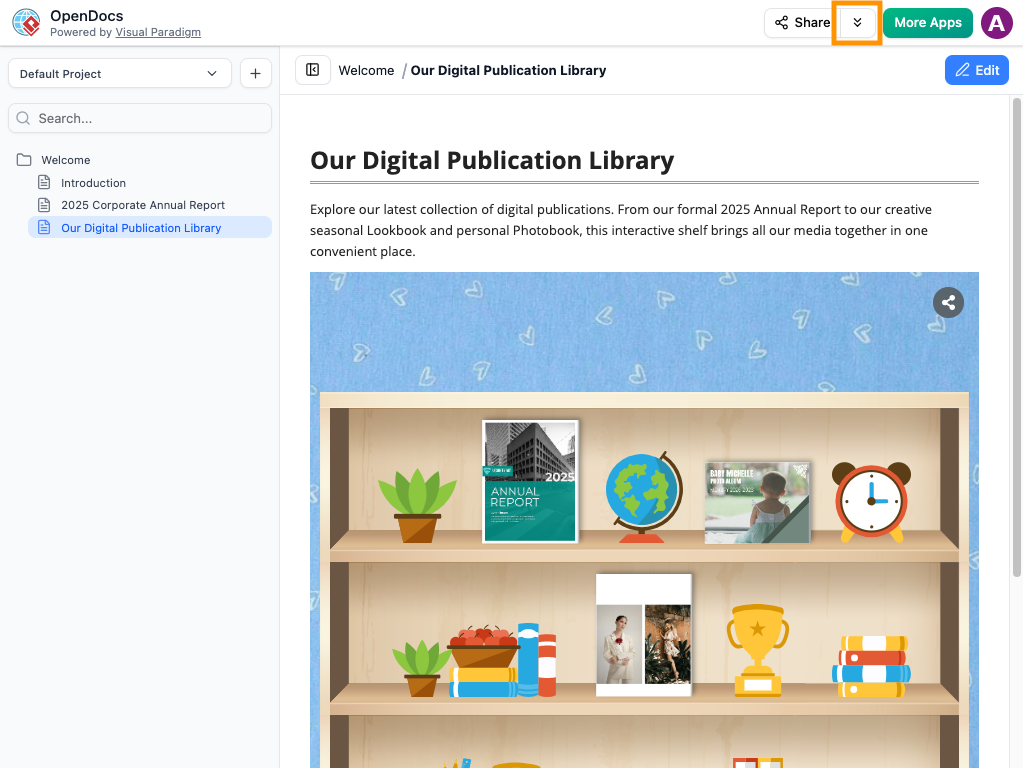
- With your diagram open, go to Export > Send to OpenDocs Pipeline
- (Optional) Add a descriptive comment: “Q3 System Architecture – Auth Service Update”
- Click Confirm – your artifact is now in the Pipeline
Step 3: Embed in OpenDocs
- Open your document in OpenDocs
- Click Edit to enter editing mode
- Place cursor where you want the diagram
- Click Insert > Pipeline in the toolbar
- Select your artifact from the list – it appears instantly
Step 4: Keep It in Sync (The Magic Step!)
When your source diagram changes:
- Edit the original in Desktop/Online/Chatbot
- Re-send to Pipeline via Export > Send to OpenDocs Pipeline
- In OpenDocs, click the Pipeline icon at top-right
- Open the In Document tab → filter shows “With updates”
- Click Update to latest revision – done! [[3]][[7]]
💡 Pro Tip: Always use descriptive comments when sending to Pipeline. “Auth Flow v2.1 – Added MFA” is infinitely more helpful than “Diagram1” when you’re managing dozens of artifacts.
AI Integration: Supercharge Your Diagramming
For Beginners: Start Simple
You don’t need to be an AI expert. Try these starter prompts in the AI Chatbot:
"Create a use case diagram for a library management system"
"Show me a sequence diagram for user registration with email verification"
"Generate a class diagram for a simple e-commerce product catalog"
"Draw a BPMN process for employee onboarding"
Intermediate: Iterative Refinement
Once you have a base diagram, refine it conversationally:
"Add a 'Guest User' actor to the use case diagram"
"Make the 'Payment Service' component asynchronous"
"Change all database icons to PostgreSQL style"
"Add error handling paths to the sequence diagram"
Advanced: Query & Document
Turn your diagram into a knowledge asset:
"What are the main security considerations in this architecture?"
"Generate a 1-page technical summary of this deployment diagram"
"List all external dependencies shown in this component diagram"
"Create a stakeholder presentation outline based on this model"
Supported Diagram Types for AI Generation [[10]]
| Category | Examples |
|---|---|
| Software Engineering | UML (Class, Sequence, Use Case, Deployment), C4 Model, ERD |
| Business & Enterprise | BPMN, ArchiMate, Value Stream Mapping, SWOT |
| Project Management | Gantt Charts, PERT, Work Breakdown Structure |
| General Visualization | Flowcharts, Mind Maps, Org Charts, Infographics |
OpenDocs: Living Documentation Made Simple
What Makes OpenDocs Different?
Unlike traditional word processors, OpenDocs is diagram-aware:
| Feature | Traditional Docs | OpenDocs |
|---|---|---|
| Embed diagrams | Static image file | Live, editable visual |
| Update diagrams | Re-upload new file | One-click sync via Pipeline |
| Diagram context | Lost after export | Preserved with metadata |
| AI assistance | Generic text help | Diagram-aware content generation |
| Publishing | Manual copy/paste | Direct WordPress export |
Key OpenDocs Features for IT Teams
🔹 Knowledge Tree: Organize docs hierarchically (e.g., System/Architecture/Auth Service)
🔹 AI Content Generation: Turn diagrams into reports, or text into structured docs
🔹 Page-Based Sharing: Share specific sections with stakeholders (not entire docs)
🔹 Static vs. Live Modes: Choose between frozen snapshots or auto-updating content
WordPress Publishing Workflow [[WordPress Export Guide]]
For teams publishing to company sites:
- In OpenDocs, click Share → select pages to include
- Choose Static Snapshot (archival) or Live Update (synced)
- Select WordPress Page as output format
- Connect via WordPress Application Password (one-time setup)
- Publish → your OpenDocs content appears as a native WordPress page
🔐 Security Note: Visual Paradigm never stores your WordPress Application Password. It’s used only for the publishing session.
Browse Share History: Stay Organized
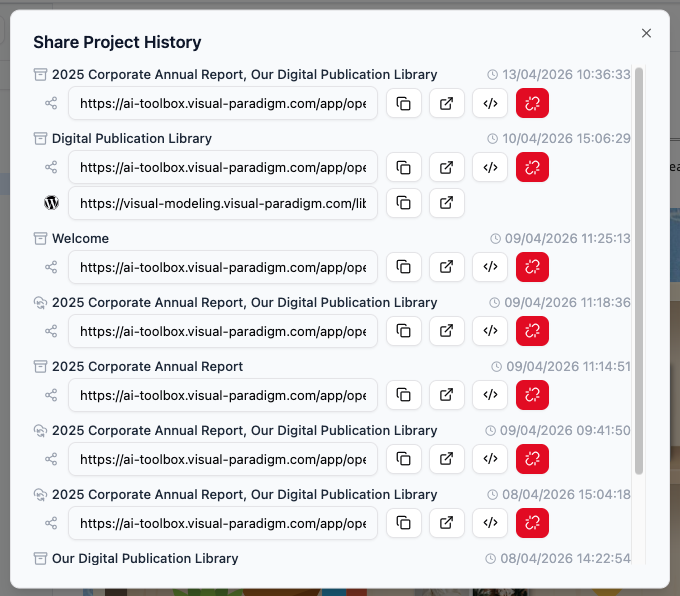
When you share multiple versions of documentation, tracking them manually becomes chaos. Browse Share History in OpenDocs solves this.
Why Share History Matters
- 🔍 Audit Access: See exactly which pages were shared, with whom, and when
- 🔄 Track Versions: Distinguish between Static Snapshots sent over months
- 🧹 Clean Up: Identify and retire outdated links
- 📋 Recover Links: Quickly re-share if a stakeholder loses their URL
How to Browse Your History
- Open the Share Dialog: Click the Share button (top-right corner in OpenDocs)

- View History: Select Browse Share History from the sharing interface
- Review Details: See a list of all active/past shares with:
- Descriptions you added
- Creation dates
- Sharing mode (Live vs. Static)
- Link to published WordPress page (if applicable)
- Manage Links: From this view, you can:
- Copy a URL again for re-sharing
- Grab embed code for existing shares
- Identify links to retire
💡 Pro Tip for WordPress Users
If you use WordPress, you don’t need to copy code manually!
Learn more about how to export and publish directly as a WordPress page
Best Practices for Organized Sharing
✅ Use Clear Descriptions: When sharing, write “Internal HR Policy – July Update” not “Doc v3”
✅ Tag by Audience: Add notes like “For Engineering Team Only” or “Client-Facing – Non-Technical”
✅ Schedule Reviews: Check Share History monthly to retire obsolete links
✅ Document Decisions: Use comments to explain why a version was shared (e.g., “Approved by Security Team 2026-03-15”)
Best Practices for Beginners
🎯 Start Small, Scale Smart
- Week 1: Try the AI Chatbot to generate one simple diagram
- Week 2: Send it to Pipeline and embed in a test OpenDocs page
- Week 3: Update the source diagram and practice syncing
- Week 4: Invite a teammate to collaborate on a shared doc
🔄 Establish Team Conventions
| Area | Recommendation |
|---|---|
| Naming | Project_Component_Version (e.g., Auth_Service_v2.1) |
| Comments | Always add context: “Added MFA flow per security review” |
| Sharing | Use Static for releases, Live for working docs |
| Reviews | Monthly Pipeline cleanup: archive unused artifacts |
🛡️ Security & Compliance Tips
- Use OpenDocs’ page-level sharing to limit access to sensitive diagrams
- Prefer Static Snapshots for audit trails and compliance documentation
- Leverage WordPress export for controlled public-facing documentation
- Never include credentials or PII in diagram labels or comments
🚀 Accelerate Adoption
- Champion Program: Identify 2-3 early adopters to mentor the team
- Template Library: Save common diagram patterns as reusable templates
- Office Hours: Host weekly 30-min sessions for Q&A and workflow tips
- Success Metrics: Track time saved on documentation updates (teams report 70-80% reduction!)
- Reference
- Sync AI Diagram to OpenDocs Pipeline Guide: Technical guide for setting up the OpenDocs Pipeline to sync desktop and cloud diagrams, combining AI-assisted modeling with professional knowledge management for faster documentation workflows. [[2]]
- Export Cloud Diagrams from Visual Paradigm Online to OpenDocs: Step-by-step tutorial for sending diagrams created in Visual Paradigm Online directly to OpenDocs via the Pipeline, eliminating manual file handling. [[3]]
- From Cloud Diagrams to Living Documentation: A User’s Journey: Real-world case study exploring how the Pipeline integration transforms documentation workflows for agile teams. [[4]]
- AI Diagram to OpenDocs Pipeline: Official guide for exporting AI-generated diagrams from the Visual Paradigm Chatbot directly into OpenDocs documentation. [[5]]
- Visual Paradigm AI Chatbot: Conversational AI tool that generates, refines, and analyzes professional diagrams (UML, BPMN, C4, etc.) from plain text prompts. [[6]]
- Online Diagram Editor Features: Overview of Visual Paradigm Online’s browser-based diagramming capabilities, supporting 150+ diagram types with casual-to-professional modeling workflows. [[7]]
- Export OpenDocs to WordPress Page: Tutorial for publishing tailored OpenDocs knowledge base sections directly to WordPress sites with static or live sync options.
- Visual Paradigm Online Diagram Gallery: Interactive showcase of diagram types available in Visual Paradigm Online, with templates and use case examples.
- Visual Paradigm Pricing & Editions: Comparison of Visual Paradigm licensing tiers (Community, Modeler, Standard, Professional, Enterprise) with feature matrices and subscription options.
- OpenDocs AI-Powered Knowledge Platform: Official product page for OpenDocs, highlighting diagram-aware editing, AI content generation, Pipeline integration, and knowledge management capabilities.
🌟 Ready to Get Started?
Sign up for a free trial at visual-paradigm.com
Try the AI Chatbot: chat.visual-paradigm.com
Explore OpenDocs: ai.visual-paradigm.com/tool/opendocs
Watch the Pipeline demo: YouTube: Ajxw_uM0pIc [[1]]
Visual Paradigm empowers IT teams to document smarter, collaborate faster, and build better systems—all with the power of AI-assisted visual modeling. 🚀
 curtis
- AI, AI Chatbot, OpenDocs
- April 14, 2026
