


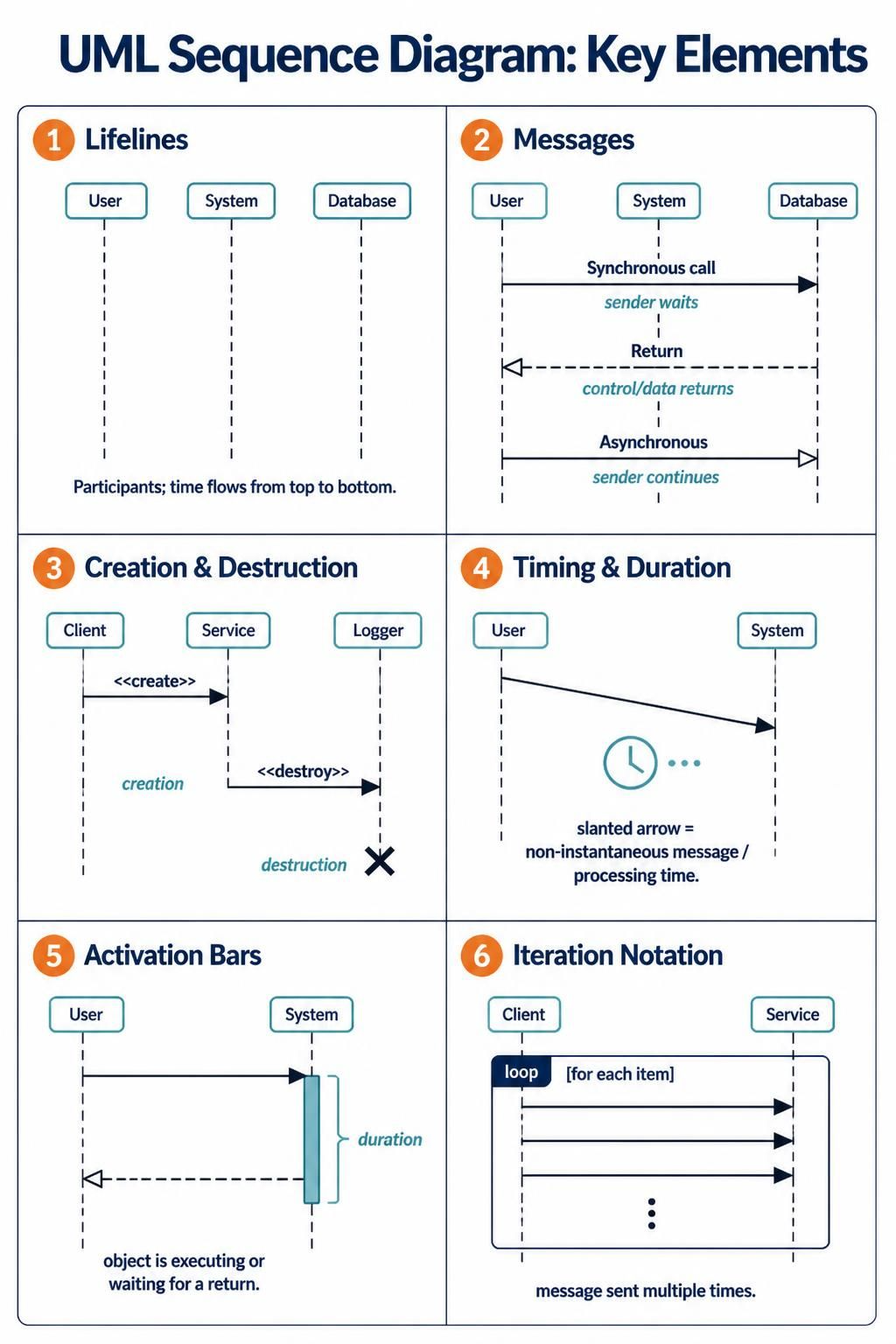
Sequence diagrams are the backbone of software design, providing a dynamic view of how systems interact over time. Unlike static diagrams that show structure, a sequence diagram captures the flow of messages between objects or systems to achieve a specific goal. Whether you are a system architect designing a new microservice or a developer debugging a complex workflow, understanding these diagrams is essential for clear communication.
In this tutorial, we will deconstruct the standard UML notation shown in the diagram above. We will walk through the six fundamental elements required to read and create effective sequence diagrams, followed by a dedicated look at how Visual Paradigm empowers you to build these models efficiently.
1. The Foundation: Lifelines
The starting point of any sequence diagram is the lifeline. This represents an individual participant in the interaction, such as a user, a specific class, a subsystem, or an external database.
- Visual Representation: Lifelines are depicted as rectangles at the top with dashed lines extending downwards.
- Time Flow: Time always flows from top to bottom. The further down the line, the later in the process you are.
- Participants: In the example diagram, we see User, System, and Database. These represent the distinct actors in our scenario.
2. Interaction: Messages
Messages are the arrows that connect lifelines, representing communication or method calls between objects. The type of arrow dictates the behavior of the sender and receiver.
- Synchronous Calls (Solid Arrow): A solid line with a filled arrowhead indicates a synchronous call. The sender (User) sends a message and waits for a response before proceeding. The receiver (System) must complete the task before returning control.
- Return Messages (Dashed Arrow): A dashed line with an open arrowhead represents the return path. This is how data or control returns to the sender.
- Asynchronous Calls (Open Arrowhead): A solid line with an open arrowhead indicates an asynchronous message. The sender fires off the message and continues its own work immediately without waiting for a response.
3. Object Lifecycle: Creation & Destruction
Objects in a system are not static; they are born and they die. Sequence diagrams capture this lifecycle explicitly.
- Creation (<<create>>): When an object is instantiated, a message labeled
<<create>>is sent to the new object’s lifeline. The dashed line for the new object begins at the point of creation. - Destruction (<<destroy>>): When an object’s purpose is fulfilled, it is destroyed. This is marked by a message labeled
<<destroy>>and a large X at the bottom of the lifeline, signifying that the object no longer exists in the timeline.
4. Timing & Duration
Real-world systems rarely operate in zero time. Sometimes, the duration of an action is critical to the system’s design.
- Slanted Arrows: If an arrow is drawn slanted rather than horizontal, it indicates a non-instantaneous message or a message with significant processing time attached to it.
- Time Notation: Diagrams often use clocks or explicit text to denote that a specific process takes time to complete, helping architects identify potential bottlenecks.
5. Execution: Activation Bars
When an object receives a message, it becomes active. This period of activity is visualized using an Activation Bar (also known as a Control Focus of Invocation).
- Visuals: This appears as a thin, vertical rectangle on top of the lifeline.
- Meaning: The bar spans from the moment the message is received until the object finishes its task or returns control. It explicitly shows that the object is either executing code or waiting for a return message.
6. Logic Control: Iteration Notation
Complex systems often involve loops. Instead of drawing the same message 100 times, UML uses frames to group interactions.
- Loop Frame: A large rectangle surrounding a set of messages represents a loop.
- Labeling: The top-left corner of the frame typically contains the word
looporalt(for alternatives). Inside the frame, you might see a condition like[for each item]or[if valid]that dictates when the loop runs.
Tooling: Visual Paradigm
To translate these concepts into professional diagrams, you need robust modeling software. Visual Paradigm stands out as the premier tool for UML modeling, offering an intuitive interface that simplifies the complexity of system architecture.
By using Visual Paradigm, you can leverage drag-and-drop functionality to place lifelines and messages, automatically aligning them to create clean, standard-compliant diagrams. The tool supports advanced features like:
- Auto-layout: Automatically arranges messages and activation bars to ensure the diagram remains readable.
- Code Generation: You can write your sequence diagram and generate the actual source code (Java, C#, Python) to speed up development.
- Reverse Engineering: Import existing codebases to automatically generate sequence diagrams, helping you understand legacy systems.
For developers and architects looking to standardize their documentation, Visual Paradigm provides the necessary power without the learning curve, making it the ideal choice for your UML modeling needs.
 vpadmin
- October 9, 2026
