


In the realm of software engineering and system design, clarity is paramount. A Component Diagram is a specialized type of UML diagram that acts as the blueprint for the physical structure of your software. Unlike a Class Diagram, which focuses on the internal logic and data structures of a system, a Component Diagram zooms out to show the high-level building blocks—the components—and how they interact with one another.
Whether you are architecting a microservices platform or a monolithic application, understanding how to model these relationships is crucial. In this tutorial, we will explore the anatomy of a component diagram using Visual Paradigm, breaking down the essential elements shown in the system architecture model below.
What is a Component Diagram?
A Component Diagram is a structural diagram in the Unified Modeling Language (UML) that represents the physical components of a system. It is primarily used for:
- Visualizing the Architecture: It provides a high-level view of the system’s modularity.
- Specifying Interfaces: It defines how components expose their functionality to the outside world (provided interfaces) and what they need from other components (required interfaces).
- Managing Dependencies: It shows the relationships between components, helping developers understand how a change in one part of the system might impact others.
Anatomy of the System Model
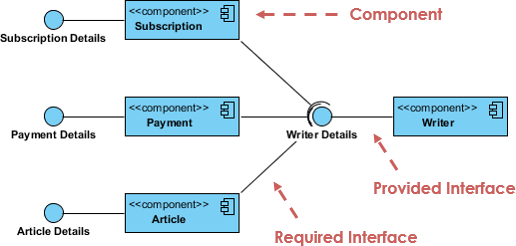
Let’s dissect the system architecture diagram provided. This specific model appears to represent a “Writer System” that aggregates data from various sources (Subscription, Payment, Article) to produce “Writer Details.”
1. The Component
The core building block of this diagram is the Component. In UML, a component is represented by a rectangle with a specific icon (two smaller rectangles on the side) and a stereotype label, typically written as <<component>>.
In our diagram, we see three distinct components on the left side:
- Subscription: Likely handles user subscription data.
- Payment: Manages financial transactions.
- Article: Stores and manages content data.
On the right, we have the Writer component. This is likely the central aggregator or the application logic that brings all the data together.
2. Provided vs. Required Interfaces
One of the most powerful features of component diagrams is the definition of interfaces. This decouples components, allowing them to communicate without knowing the internal details of each other.
- Provided Interface (The “Lollipop” Icon): In the diagram, the Writer component has a “ball” symbol (lollipop) attached to it. This indicates that the Writer provides a service to the other components. The label “Writer Details” suggests that the Writer exposes data about the writer, which the other components might consume.
- Required Interface (The “Socket” Icon): The Writer component also has a “socket” or semi-circle symbol. This indicates that the Writer requires certain services or data from other components to function. It is requesting the “Writer Details” service.
3. Dependencies
The solid lines connecting the components represent Dependencies. A dependency implies that one component relies on another. If the interface of a dependent component changes, it may require changes in the component that depends on it.
In this model:
- The Subscription, Payment, and Article components depend on the Writer component.
- This suggests that these three modules are client components that need to access the functionality provided by the Writer.
4. Labeled Connectors
Visual Paradigm allows you to add descriptive labels to your connectors to make the diagram self-documenting. The diagram uses red dashed lines with labels like “Component”, “Provided Interface”, and “Required Interface”. While these labels are part of the modeling process to clarify the diagram for human readers, the underlying solid lines represent the actual structural connections.
Implementing this in Visual Paradigm
To recreate this architecture in Visual Paradigm, follow these steps:
- Create the Diagram: Navigate to File > New > Model. Select UML as the model type, and then choose Component Diagram.
- Add Components: From the toolbar, select the Component tool. Click on the canvas to create the four components: Subscription, Payment, Article, and Writer.
- Define Interfaces:
- Select the Writer component.
- Use the Provide Interface tool (often a circle) to draw the ball icon.
- Use the Require Interface tool (often a semi-circle) to draw the socket icon.
- Connect Components: Select the Dependency tool (dashed line) or Association tool (solid line) to connect the client components to the writer.
- Annotate: Use the Text tool to add the red labels seen in the diagram to explain the relationships.
Advanced Modeling Tips
When designing complex systems, it is often necessary to view components at different levels of granularity. Visual Paradigm supports this by allowing you to create Component Diagrams that reference other diagrams or packages. This allows you to hide the implementation details of a component until you are ready to dive deeper.
Additionally, the “Component” stereotype in Visual Paradigm can be customized to reflect specific deployment targets, such as <<executable>, <<library>, or <<folder>, providing a bridge between the logical design and the physical deployment.
Conclusion
Component Diagrams are essential for defining the boundaries of your system. By using Visual Paradigm to model these relationships, you ensure that your team has a clear, unambiguous understanding of how the system is constructed. Whether you are designing the Writer system or a larger enterprise architecture, mastering these diagrams will help you build robust, scalable, and maintainable software.
 vpadmin
- October 12, 2026
